how to use git
2023-04-09
Git is a version control system where you can upload, update, and track the source code of your project. Also, you can easily deploy codes in your Git repository to a deployment/hosting platform.
There are so many benefits from using Git (or any version control system) in source code management, and let’s go through how to use Git with a step by step instruction.
Create a web repo
Go to Github website, sign in to your Git account, and create a new repository (hereinafter repo) which will store your project source code by clicking + button as seen in the step 1 below. (You will need to create a Github account first unless you have one).
After that, set a name of the repo you prefer, select visibility between public and private, and click ‘Create repository’ as you can see in the step 2.
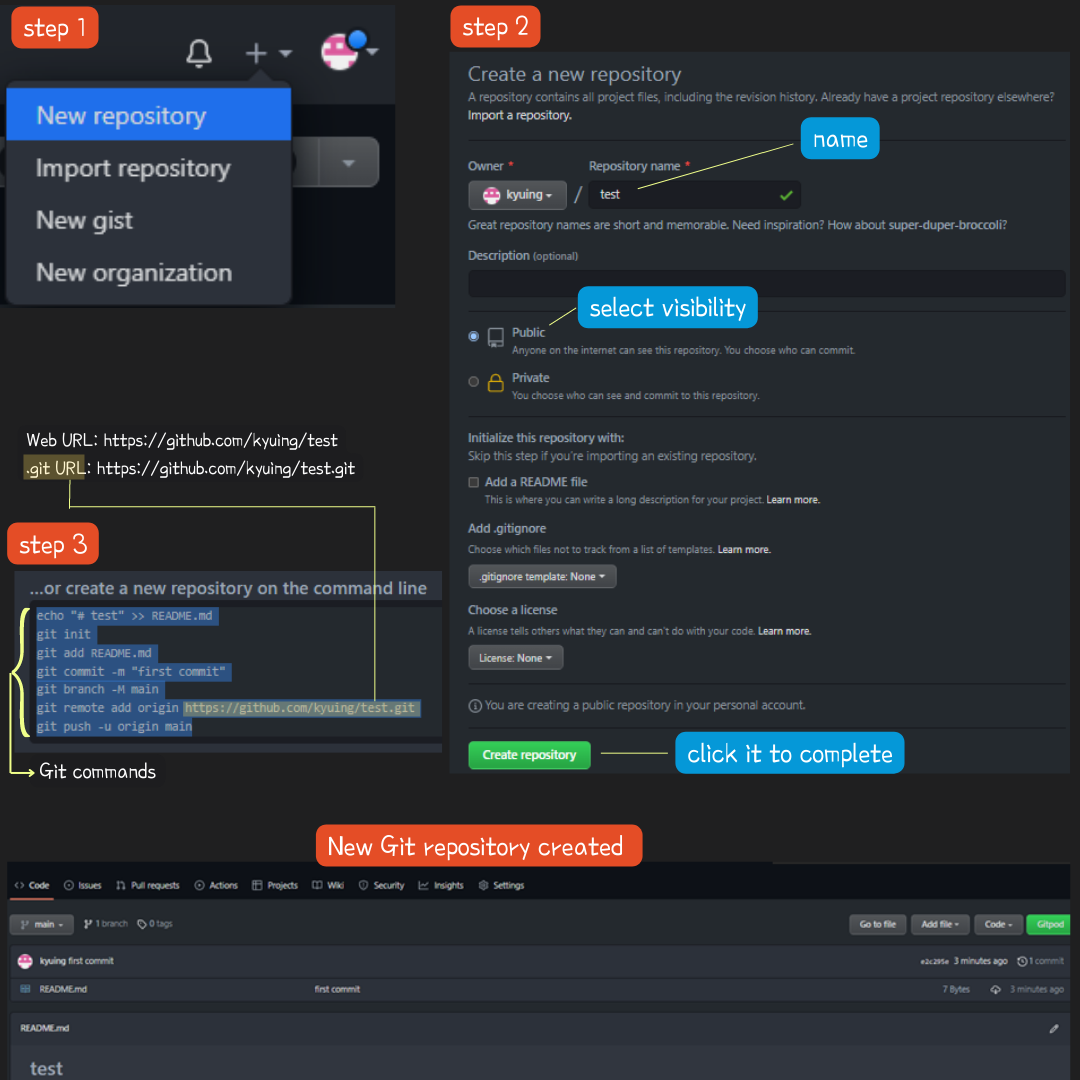
You will then be taken to a page that gives Git commands like the step 3 above. That means, your web repo on Github has just been created successfully and you will be able to verify it in any web browser; e.g.,; https://github.com/kyuing/test/.
Another URL with .git extension is a remote repo URL of the web repo you’ve just created. It will be used to sync a local repo in your local project directory with your web repo on Github.
In other words, any source code in your local project directory you select will be in sync with your web repo on Github by creating a local repo (with the remote repo URL in it) inside your local project directory, and let’s complete these setups together.
First, create a project directory in your computer and copy the directory path.
As an example, I created a project directory named ‘test’ at the local path C:\Users\Kyuing\Desktop\test based on Windows OS.
Note: if you have any source codes in the existing local directory of your computer, simply copy that directory path.
Open the command line.
- Windows: type
Win + rto open the Run command and then typecmdin it. - MAC/UNIX-based users (hereinafter MAC):type
Command (⌘) + Spacebar.
Paste the (absolute) directory path you’ve copied into the command line.
Don’t forget to put the command cd in front of the path!
- Windows: type
cd C:\path to the directory\directory_name- e.g.,
cd C:\Users\Kyuing\Desktop\test
- e.g.,
- MAC: type
cd /path to the directory/directory_name
The easiest way with no command-line hassle is to drag & drop your project directory into a window of Visual Studio Code so that you are automatically at your project directory path on the command line within the program; use the shortcut Ctrl + Shift + ` (backtick) to open the in-program command line if not shown. I strongly recommend this way!
Create a local repo
Now, as you are at the right path of your local project directory on the command line, it’s time to create a local repo in the directory.
To do so, just copy the entire copyable Git commands shown in your web repo page like the highlighted block in the step 3 above. (The form of the Git commands is the same, but your remote repo URL with .git extension should be a unique one assigned by Github.)
Paste them into the command line, press enter key, and your local repo will then be created inside your local project directory.
(Windows users may need to download Git; see Git Guides; Install Git)
C:\Users\Kyuing\Desktop\test>echo "# test" >> README.md
C:\Users\Kyuing\Desktop\test>git init
C:\Users\Kyuing\Desktop\test>git add README.md
C:\Users\Kyuing\Desktop\test>git commit -m "first commit"
C:\Users\Kyuing\Desktop\test>git branch -M main
C:\Users\Kyuing\Desktop\test>git remote add origin https://github.com/kyuing/test.git
C:\Users\Kyuing\Desktop\test>git push -u origin main
Let me briefly explain how a local repo becomes ready to be in sync with a web repo on Github, referring to the Git commands of mine as an example.
The command git init creates a local repo (a hidden .git directory) in the local project directory ‘test’, and git remote add origin https://github.com/kyuing/test.git adds into the local repo the remote repo URL (https://github.com/kyuing/test.git) that points to my web repo on GitHub.
Three important Git commands you should get familiar with are:
git initthat initializes local repogit committhat tracks and saves all changes locallygit pushthat syncs local repo with web repo on Github
What if there’re any changes (e.g., adding/deleting directories, files, codes, etc) in the directory ‘test’, which now has the local repo in it?
Say, I add a simple HTML document index.html into the directory ‘test’, and the local repo will then track it, notifying that there’re changes.
The following Git commands git add and git commit locally add and commit the changes in the directory ‘test’ to the local repo, and git push then pushes changes (staged changes) in the local repo to the web repo on Github.
C:\Users\Kyuing\Desktop\test>git add .
C:\Users\Kyuing\Desktop\test>git commit -m "v1: hello world"
C:\Users\Kyuing\Desktop\test>git push
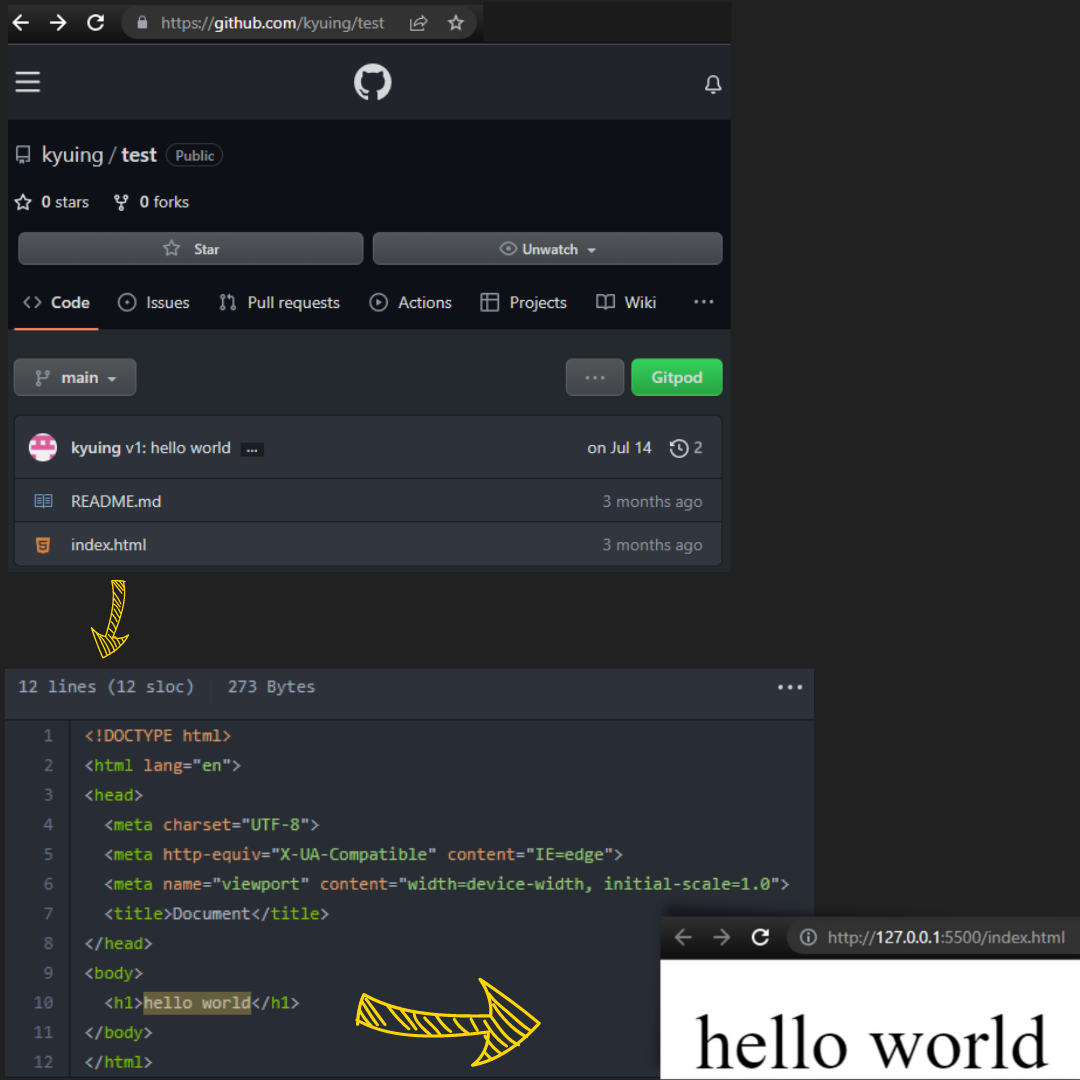
Github docs; Create a repo
github-git-cheat-sheet
git-cheat-sheet-education.
Git Guides; Install Git
Using Git source control in VS Code


